WatchOver
New device? Scan QR code to get started

New device? Scan QR code to get started
This guide will help you set up and use your GPS tracking device. Follow these simple steps to get started with real-time location monitoring.
To access your device for the first time, scan the QR code located on the back of your WatchOver device using your phone's camera.
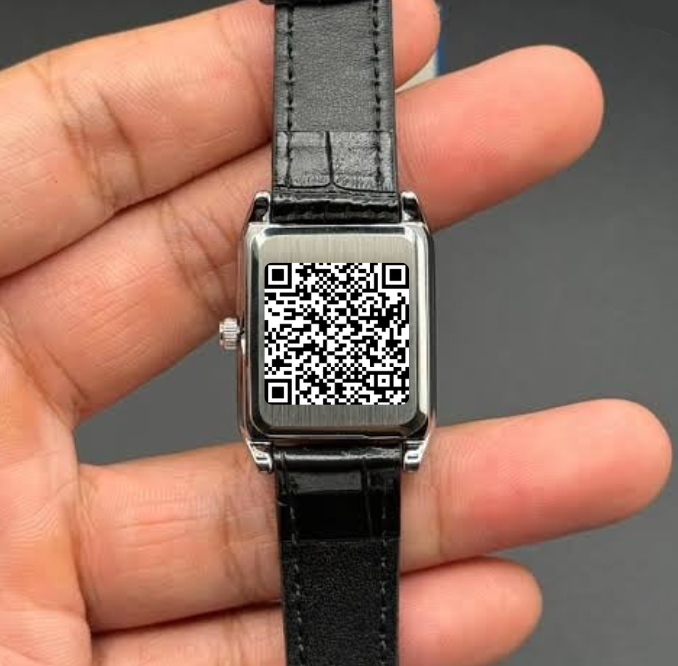
The QR code contains your unique Device ID. Your default password is 12345. After scanning, these credentials will automatically fill in the login fields.
Important: For security, please change your password after your first login.
The map displays the real-time location of your device. The marker shows the current position, and you can zoom in/out or drag to explore the surrounding area.
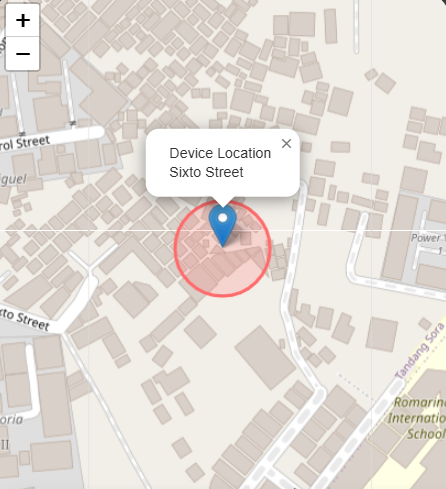
The map automatically updates when new location data is received from your device.
The information panel displays essential tracking details:
Shows the address or coordinates of the device's latest position

Displays when the device last transmitted location data
Indicates whether the device is actively transmitting data
Shows the remaining battery percentage of your device
Click the "Activity History" button to view the device's location timeline and movement patterns over time.
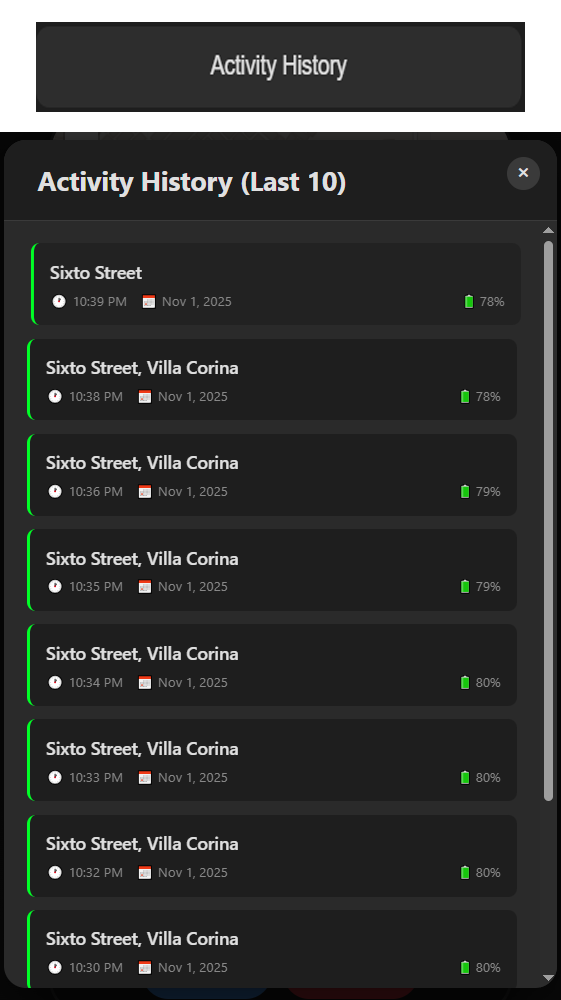
This feature allows you to track where the device has been and review past locations.
Use the bottom navigation bar to move between sections:

Geofence: Draw Geofence Area on the map
Change Password: Changes your account password
Logout: Securely exits your session
You're all set! Start tracking your device now.
Current location
Time of last update
Device Status
Battery level